Connecting your number, and why Facebook asks you to log in
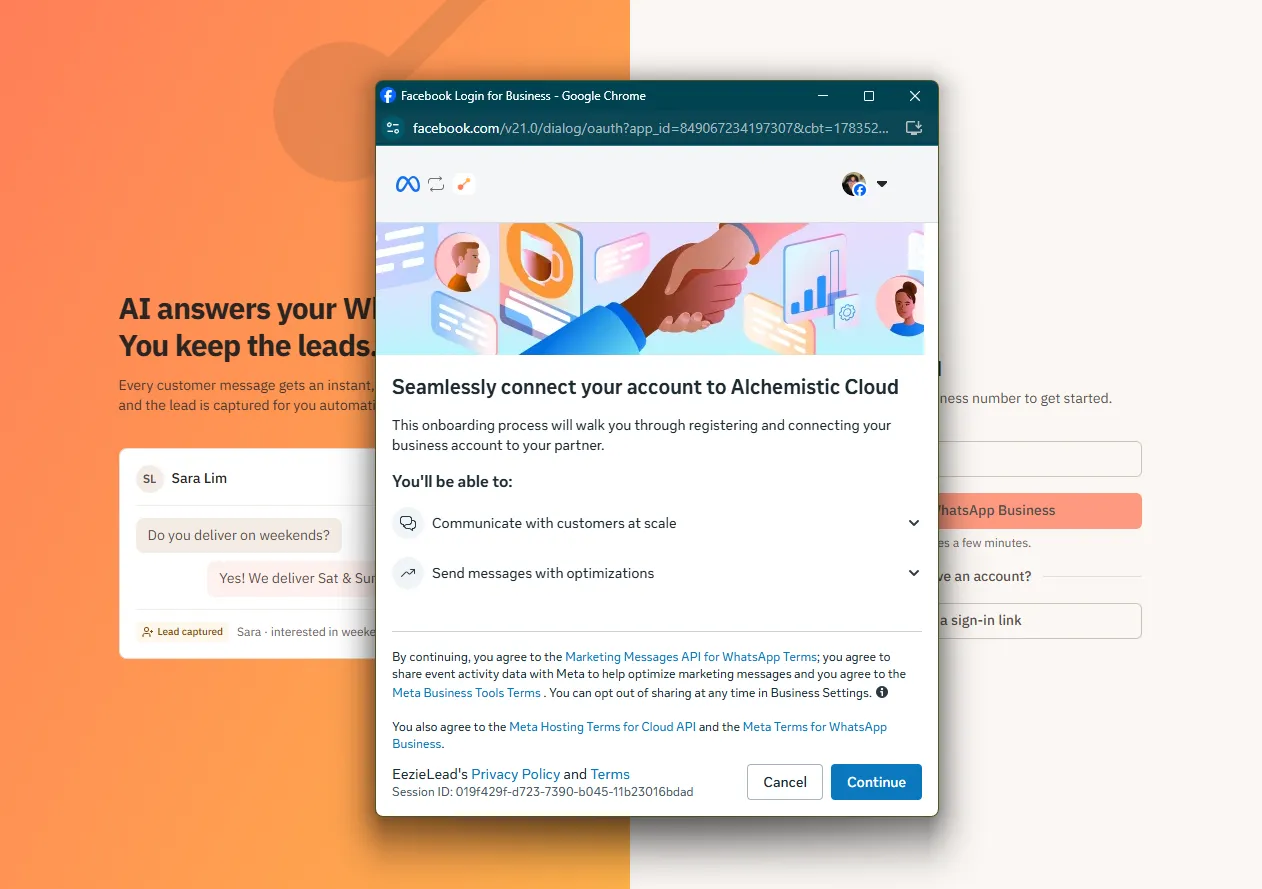
You connect your number through Embedded Signup, Meta's official, secure flow, built right into EezieLead. It opens a Facebook window and walks you through a few steps.
This isn't the first thing you do. By the time you get here you've usually built your AI and watched it answer, so you already know whether it's worth connecting a number to.
What connecting gives you
Everything that needs a real WhatsApp number, and nothing else:
- Real customers reach your AI. The whole point.
- A test number, so you can message your business number from your own phone while the AI is still paused. See test before going live.
- Replying from Conversations, so you can answer by hand inside EezieLead as well as from your phone.
- Follow-up messages, for re-opening a chat after WhatsApp's 24-hour window closes.
Why Facebook is involved
Think of it as three layers stacked on top of each other:
- Your personal Facebook login. Just the key you sign in with.
- Your Meta Business account. Your business's home on Meta (you can create one during the flow if you don't have one).
- Your WhatsApp number. It lives inside that Meta Business account.
So "Facebook" isn't becoming your WhatsApp account. It's simply how Meta verifies it's really you before letting EezieLead connect your number.
Steps
Find the Connect page
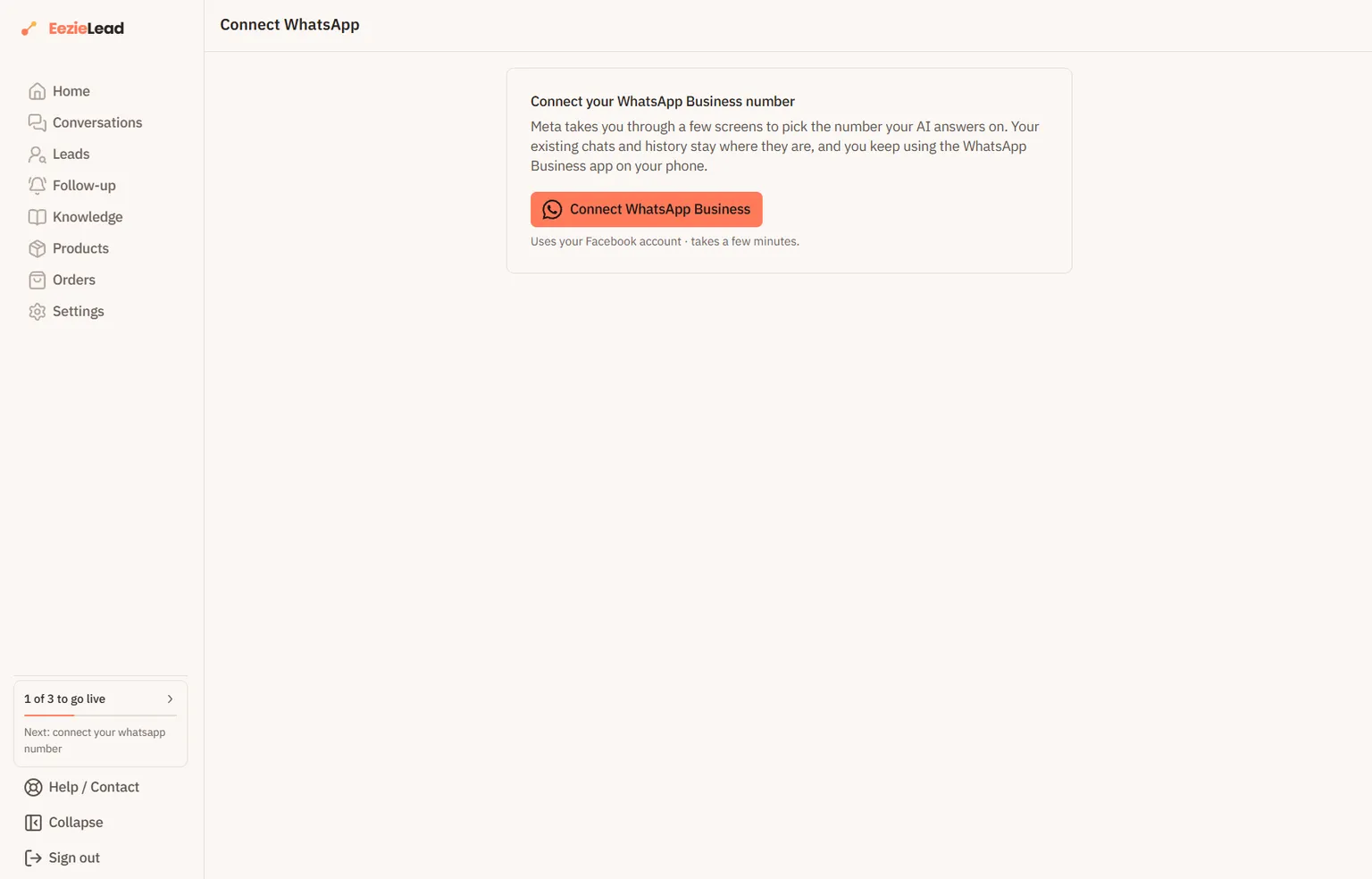
In EezieLead, open Connect WhatsApp. Three things lead there, whichever you notice first: the Connect your WhatsApp number row in your setup panel, the setup card at the bottom of the sidebar, or the checklist on Home.
Start the connection
Tap Connect WhatsApp Business. A secure Meta window opens and explains what it's about to connect.
Log in with Facebook
Sign in with your personal Facebook. If you manage a Facebook Page for your business, use that same login.
Choose your business assets
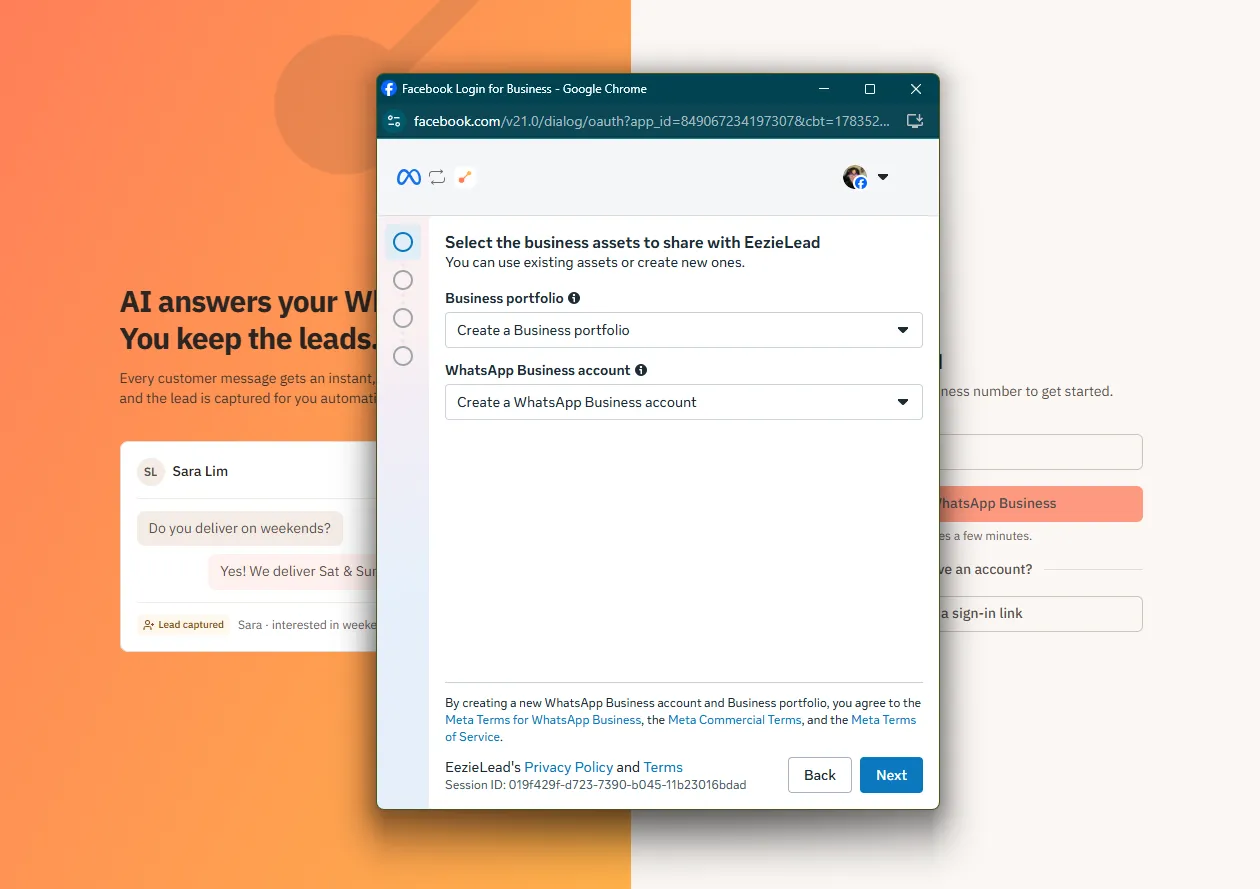
Pick or create your Meta Business portfolio and WhatsApp Business account. Already using this number on the green Business App? Choose "Connect a WhatsApp Business App" here. Full details in Already using this number on the Business App?.
Confirm your business details
If you're creating new assets, fill in the short business form: name, category, country, and website.
Add and verify your number
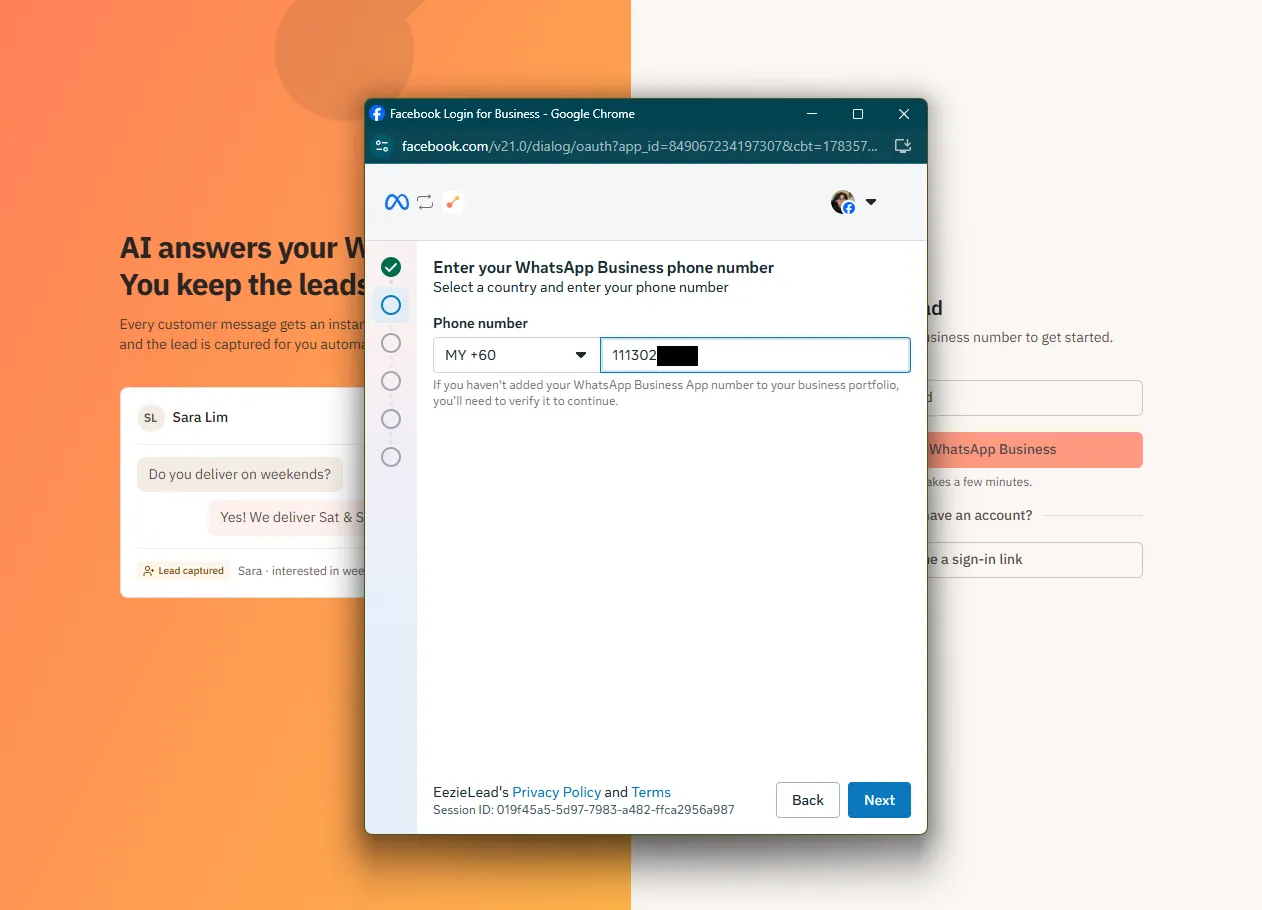
Enter the WhatsApp number you want EezieLead to run on, then confirm the code Meta sends you. (Connecting an existing Business App number? You'll scan a quick QR code from your Business App instead. See the Coexistence guide.)