Test before going live
This is the second test, the one on real WhatsApp. The first one needs no number at all: the preview beside your agent's settings is where you catch most of what's wrong, and it's faster because nothing has to be sent.
What the preview can't show you is the real thing: how it looks in WhatsApp on a phone, how fast the messages arrive, whether photos and files come through. So once your number is connected, you do it once for real, on your own phone, before any customer is involved.
What "paused" means
Your AI is paused when your number first connects. That's deliberate, not a fault. A WhatsApp message can't be unsent, so you get to read its replies before a customer ever does.
- Customer messages still arrive and are still logged under Conversations.
- The AI sends nothing automatically.
- You can reply by hand from Conversations, or from your WhatsApp Business App if your number is on both.
- Leads are still captured from the conversations that come in.
Try it on your own phone
Open your setup panel
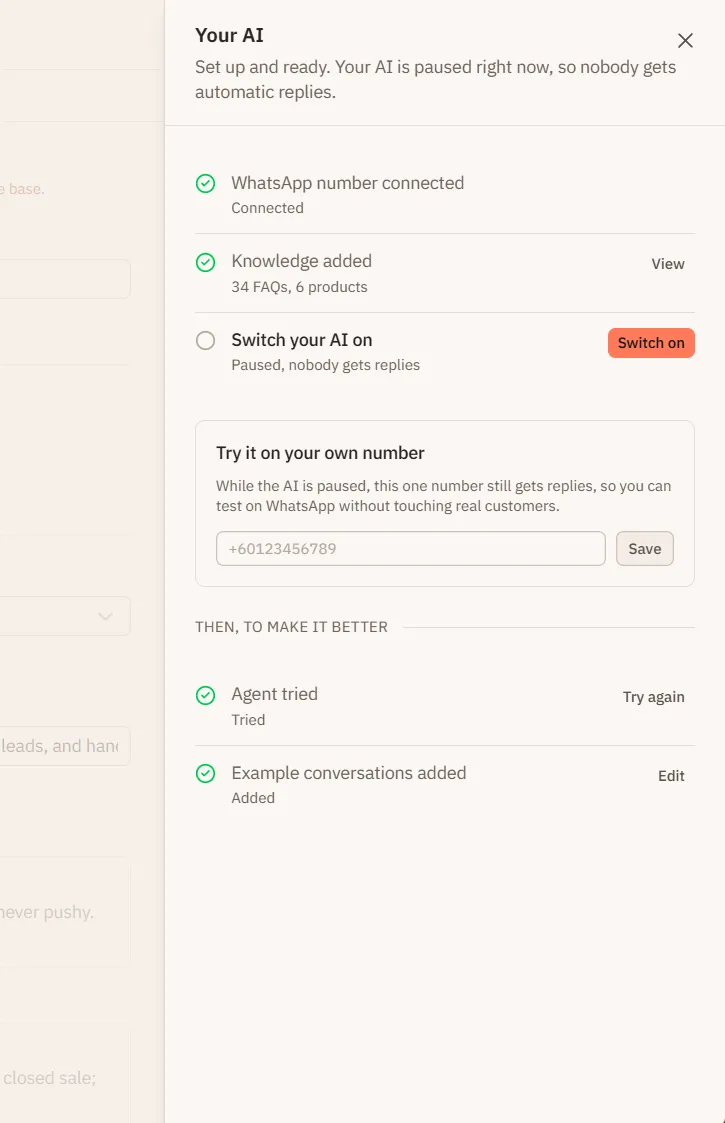
Everything in this section lives in one place: the setup card at the bottom of the sidebar. Click it on any screen and a panel slides out with what's left to do, your test number, and the button that takes the AI live.
Add your test number
In the panel, find Try it on your own number and enter your own mobile number, then tap Save.
This is the phone you'll message from, not your business number. While the AI is paused, this is the only number it will answer.
Message your business number
Open WhatsApp on that phone and send a message to your business number, exactly like a customer would. The AI replies to you, and only you.
Ask it the hard questions
Try what customers actually ask: prices, stock, opening hours, "can I speak to someone". Watch for wrong details, the wrong language, or a tone that doesn't sound like your business. Send a photo if customers do.
Fix and try again
Anything off usually comes from Knowledge, Products, or Settings. Edit them, press Save, then send another message. Saved changes apply to your next message, there's nothing to redeploy.
For anything about wording or tone, the preview is the quicker loop, because it can read a change before you save it. Just remember it changes nothing on its own: press Save in Settings, or WhatsApp keeps giving you the old version.
Switch the AI on
Happy with it? In the same panel, press the button that switches your AI on. The first time, that's Switch my AI on at the bottom of the panel. Afterwards it's a Switch on button on the Switch your AI on row.
From that moment the AI answers every customer, and your test number stops being special. You can pause it again any time.
Changing your mind later
Once you've been live, the switch at the top of Home is how you take the AI off duty, over a holiday or while you rework your FAQs. It reads AI active or AI paused, and it works both ways. Whenever it's paused, your test number becomes the only one the AI answers again.

If that switch is greyed out and reads AI not connected, there's no WhatsApp number on the account yet. Connect one and it becomes available.